Makcu
Buy the box
🛒 BuyInstallation
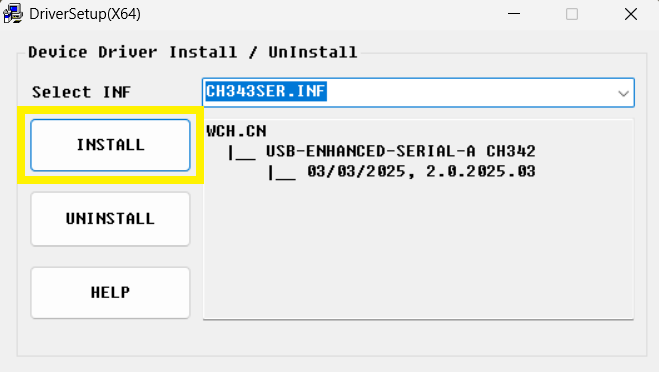
1.Driver installation
#1.Download the driver (CH343SER)
2.Open the driver
3.Click INSTALL
2.Firmware flashing
Please make sure you complete firmware flashing for both ⬅️left side and ➡️right side
- Online flashing
- Offline flashing
If online flashing fails, try offline flashing again
- ⬅️Left side
- ➡️Right side
Box connection - Left
#1.Connect one end of the dual USB cable to the PC first
2.Open the top cover of makcu
3.Hold the left button
4.At the same time, plug the dual USB into the left port of makcu
5.After plugging in, release the button after 3 seconds

Firmware write - Left
#1.Open the flashing website
2.Click the Connect button at the top right
3.Select ESP32-S3 for the connection
4.Scroll down the page until you see 串口终端
5.Flash mode -> Online
6.Device list -> Default selection: V3.8_LEFT.bin
For Logitech mouse, choose: V3.2_LEFT.bin
7.Wait until the page shows Flash successful
💽 Flashing website
- 2.Click the Connect button at the top right
- 3.Select ESP32-S3 for the connection
- 4.Scroll down until you see 串口終端


Box connection - Right
#1.Unplug the USB connected to makcu
2.Open the top cover of makcu
3.Hold the right button
4.At the same time, plug the dual USB into the right port of makcu
5.After plugging in, release the button after 3 seconds

Firmware write - Right
#1.Open the flashing website
2.Click the Connect button at the top right
3.Select ESP32-S3 for the connection
4.Scroll down the page until you see 串口终端
5.Flash mode -> Online
6.Device list -> Default selection: V3.8_RIGHT.bin
Or you can try: V3.4_RIGHT.bin / V3.2_RIGHT.bin
7.Wait until the page shows Flash successful
💽 Flashing website
- 2.Click the Connect button at the top right
- 3.Select ESP32-S3 for the connection
- 4.Scroll down until you see 串口终端


⬇️ Download tool
#If you want to change the flashing version, switch the Online button to Offline, then download one of the firmware files below for flashing
???+ "⬅️Left side firmware (flash any one .bin file)" ⬇️ V3.8_LEFT.bin ⬇️ V3.2_LEFT.bin ⬇️ V2.0_LEFT.bin ???+ "➡️Right side firmware (flash any one .bin file)" ⬇️ V3.8_RIGHT.bin ⬇️ V3.4_RIGHT.bin ⬇️ V3.2_RIGHT.bin ⬇️ V2.0_RIGHT.bin
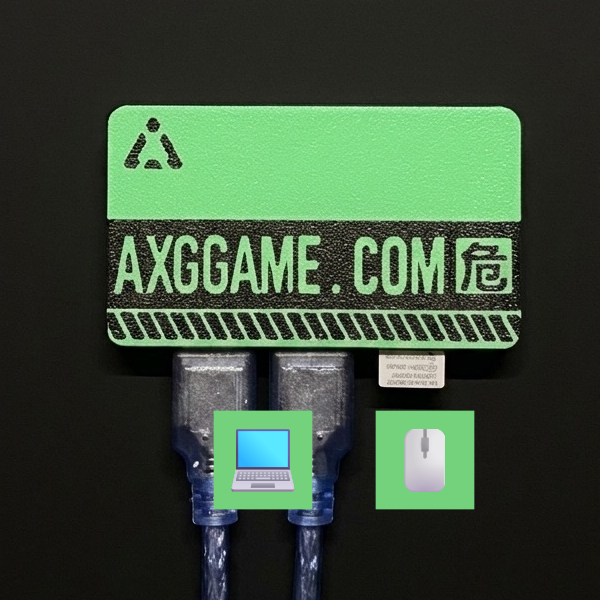
Connect the box to the PC
#Left/middle ports use the included USB data cable to connect to the PC
The right port connects to the mouse/mouse wireless receiver
Connect the box to the tool
Get the COM port number
#1.Open Move the mouse over the Windows Start button
Right click and you will find Device Manager in the menu
2.Expand Ports
3.Find CH343 (COM?). The number after COM is the COM port number

Tool connection settings
#1.Open the tool and log in
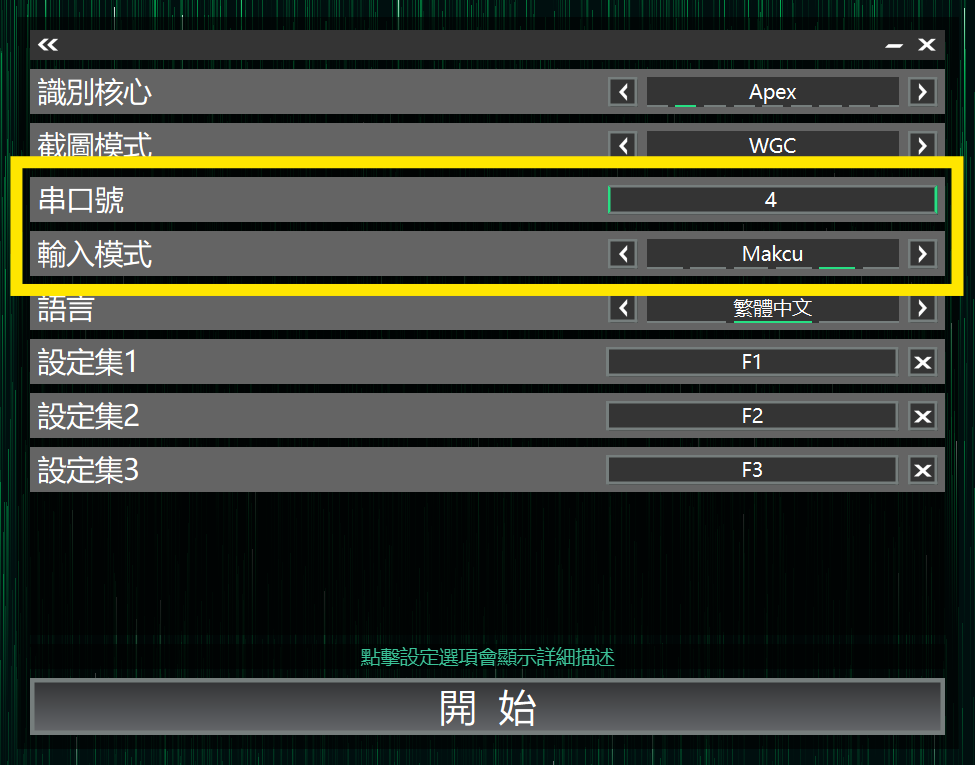
2.On the Core Selection page, set Input Mode to Makcu
3.Enter the COM port number
4.Click the tool's Start button to begin the connection