Assist Experience Optimization
Detection Rate
#What the detection rate is
AIG Assist finds targets by grabbing the screen over and over. How many times it manages that per second is the detection rate. The higher the number, the faster the aim keeps up with a moving target.
#Where the detection rate is shown
The detection rate is shown below the detection box

#How to read the detection rate
| 🟩 Excellent | 🟦 Usable | 🟧 Slow aim | 🟥 Unusable |
|---|---|---|---|
| 150↑ | 100~150 | 60~100 | 60↓ |
The order to tune in
#Tuning order overview
- Raise the monitor refresh rate
- Set the capture mode to WGC
- Limit max game FPS
- Lower in-game effects quality
- Lower game resolution
- Reduce detection range
- Upgrade to a better GPU
Step by step
#Step 1 Raise the monitor refresh rate
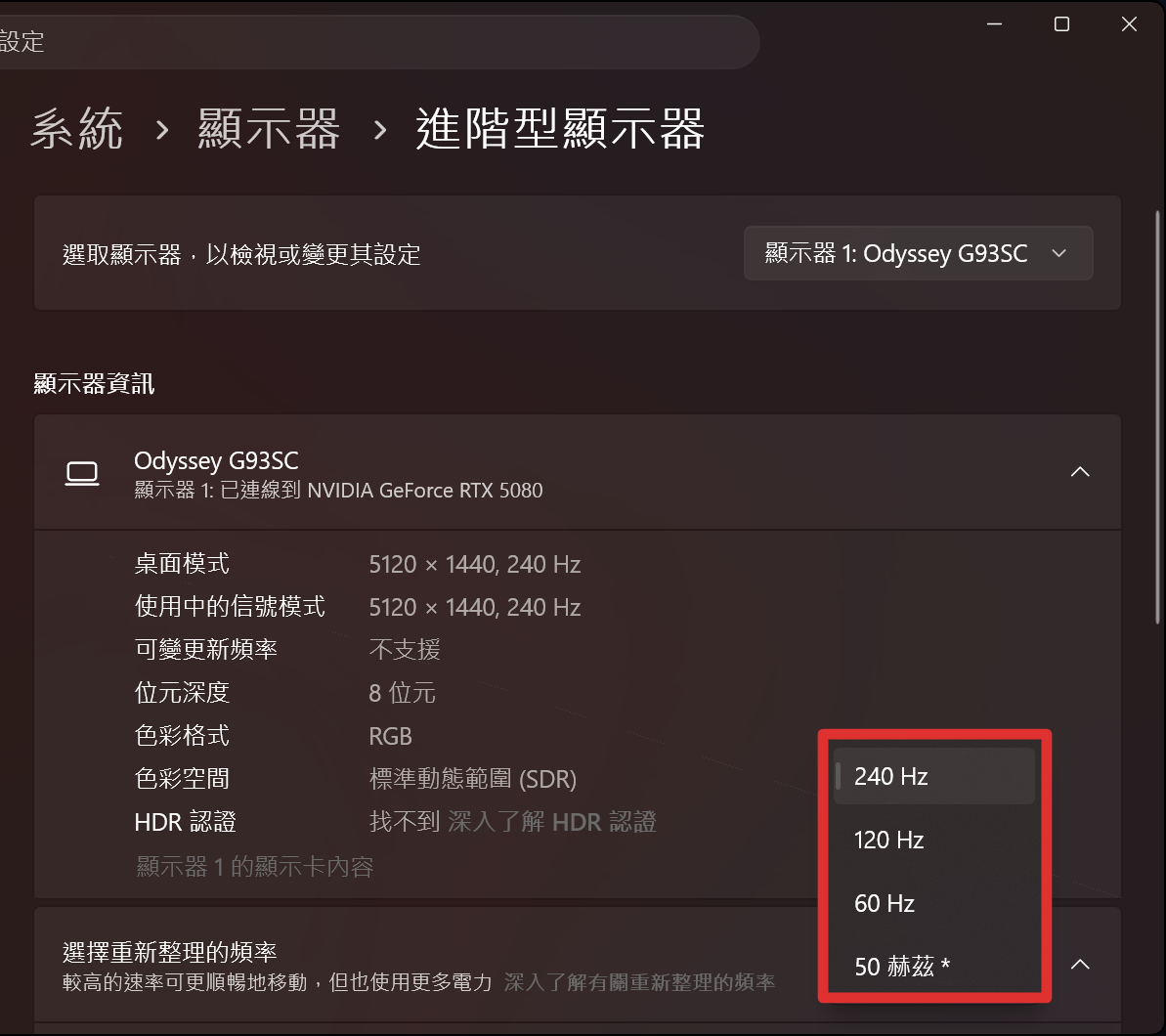
Windows Settings → System → Display → Advanced display → Choose a refresh rate, and pick the highest your monitor supports.
#Step 2 Set the capture mode to WGC
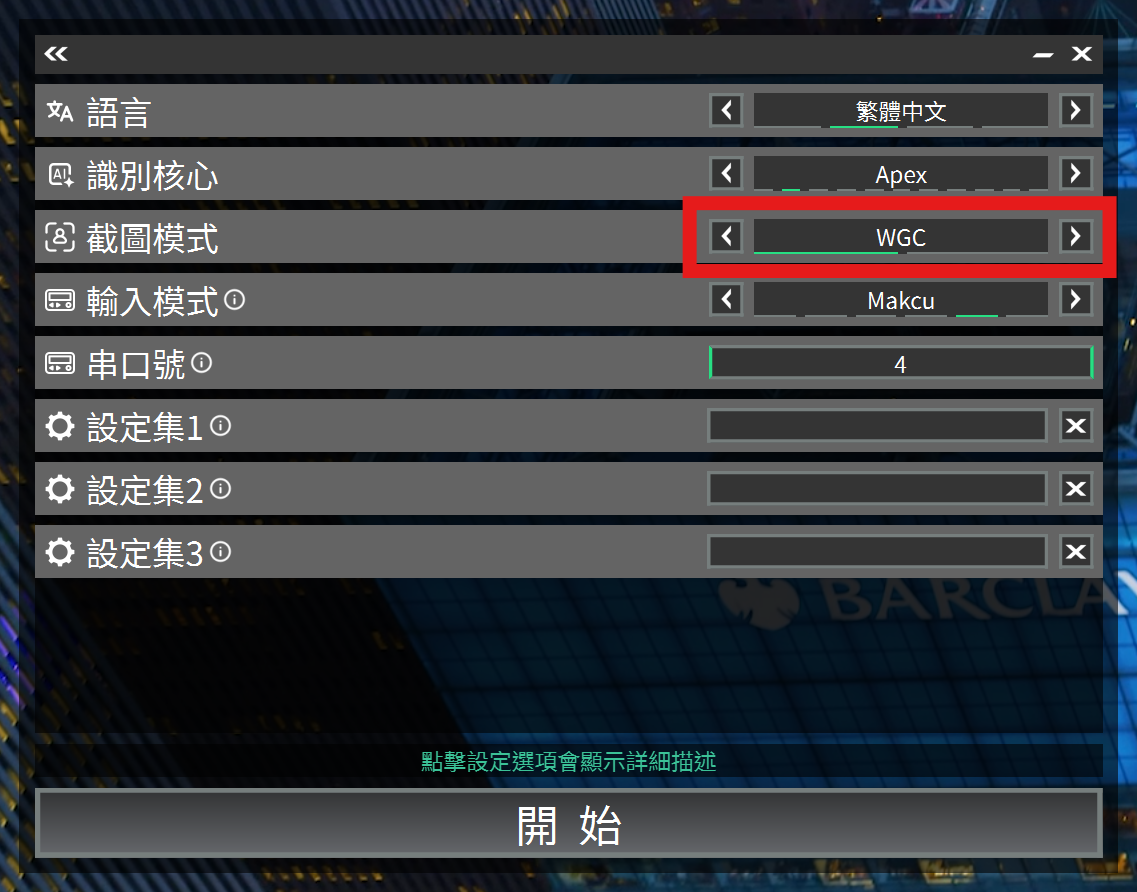
When you generate the core, set capture mode to WGC. That option grabs the screen faster, so the same graphics card reaches a higher detection rate.
#Step 3 Set a game FPS limit
Pick any value for now and adjust it once you have seen the number. 120 is a common starting point; on an older card start at 90.
Every game sets this in a different place, so open the one you play:
🎮 FPS settings per game#Step 4 Get in-game and read the number
Get into an actual match - not the menu - start AIG Assist, and read the detection rate below the detection box. Compare it against the table above.
#Step 5 Still short? Work down the list
A detection rate below the FPS limit you set means the graphics card has nothing left to give. Change one thing at a time, and go back to step 4 and read the number again after each one:
- Drop the FPS limit one step further (for example 120 → 90)
- Lower in-game effects quality
- Lower the game resolution
#Step 6 Reduce the AI detection radius
The three above cost you picture quality. This one costs you how much of the screen AIG Assist can see, and it is a setting in AIG Assist rather than in the game - which is why it comes last.
It goes as low as 0.1, but do not go below 0.5. A smaller radius costs less performance, but AIG Assist also sees less of the screen - too small and it will not spot a target coming in from the side in time.
➡️ Where the AI detection radius is set#Step 7 There already? Push for more
If the detection rate has caught up with the FPS limit you set, the graphics card still has room to spare. Raise the limit a little, go back to step 4, and look again - keep going until the detection rate can no longer keep up. The last step it kept up with is the best setting for your machine.