Getting Started
#GPU Requirements
#Supported NVIDIA Models
| 50 Series | 40 Series | 30 Series | 20 Series | |
|---|---|---|---|---|
| Minimum | RTX5050 | RTX4050 | RTX3050it | RTX2060 |
AMD is not supported yet
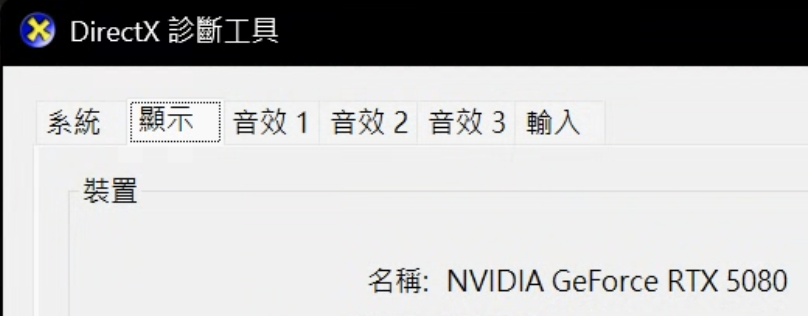
#How to check your GPU model?
1.Press Win + R
2.Type dxdiag and click "OK"
3.Switch to the "Display" tab (dual GPU systems show "Display 1" and "Display 2")
4.Under "Device", check the model name shown in "Name"
#Follow the guide below
- Install AIG Assist
- Optimize the AIG Assist experience
- Connect the box
- Set base sensitivity
- Enjoy
Download the installer
⬇️ Download nowInstall
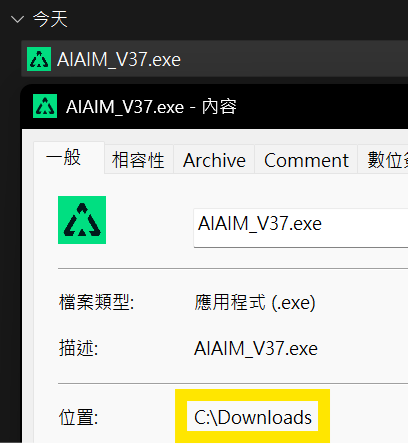
#The installer path must not contain Chinese characters
1.Right click the installer and choose Properties 2.Check whether the path shown under Location contains any Chinese characters
#1.Double click the downloaded installer
If Windows protection shows up
2.Click More info
3.Click Run anyway
✅ The AIG Assist will start automatically, and you will see the injector window
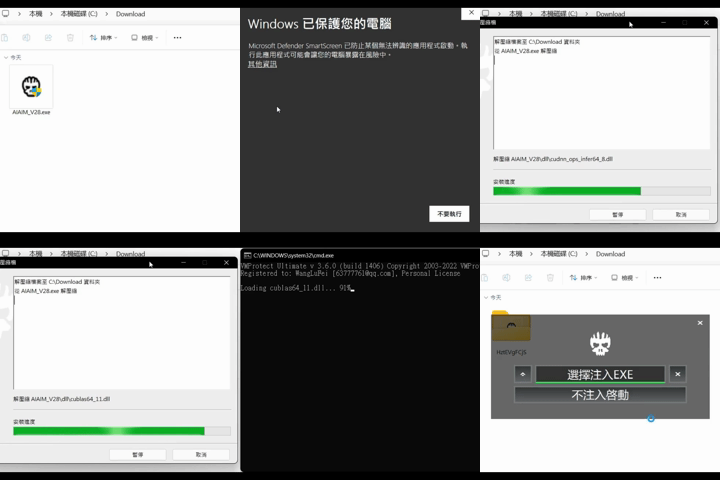
#After installation, the installer will be replaced by a randomly named folder. You can find the injector inside.
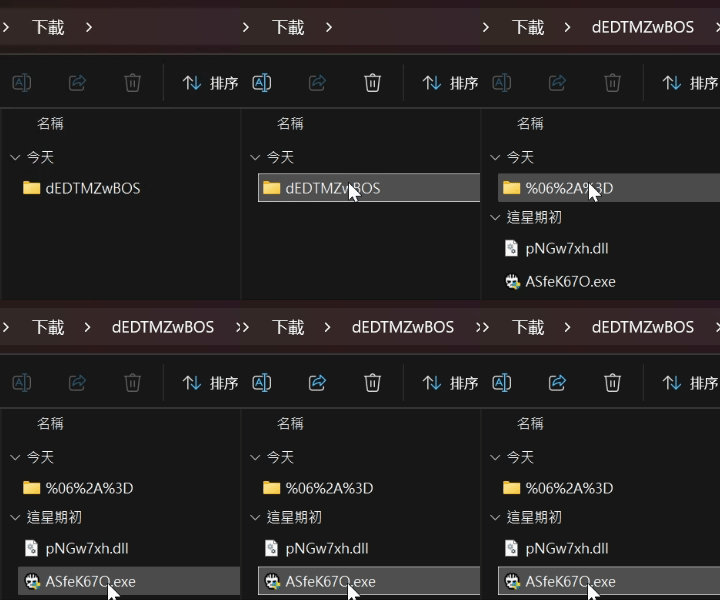
Injection
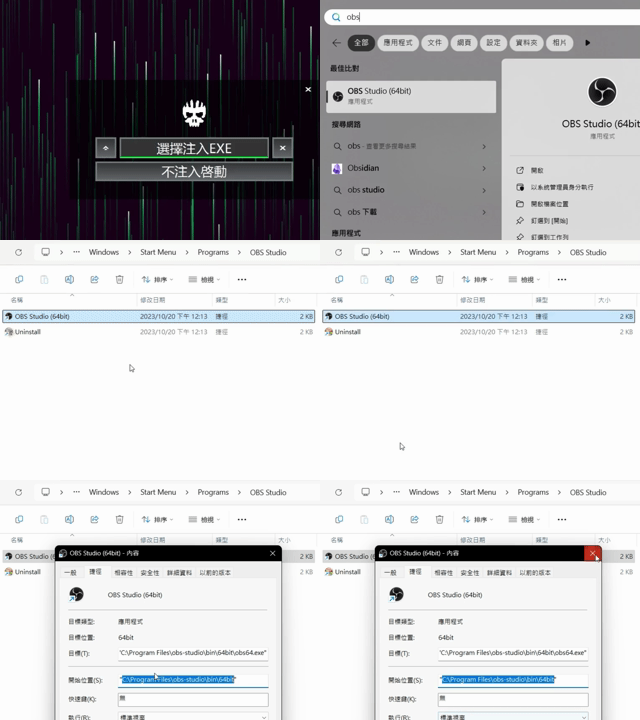
#We recommend installing OBS as the injection target. It helps improve stealth and usage safety.
#1.Get the OBS launcher path
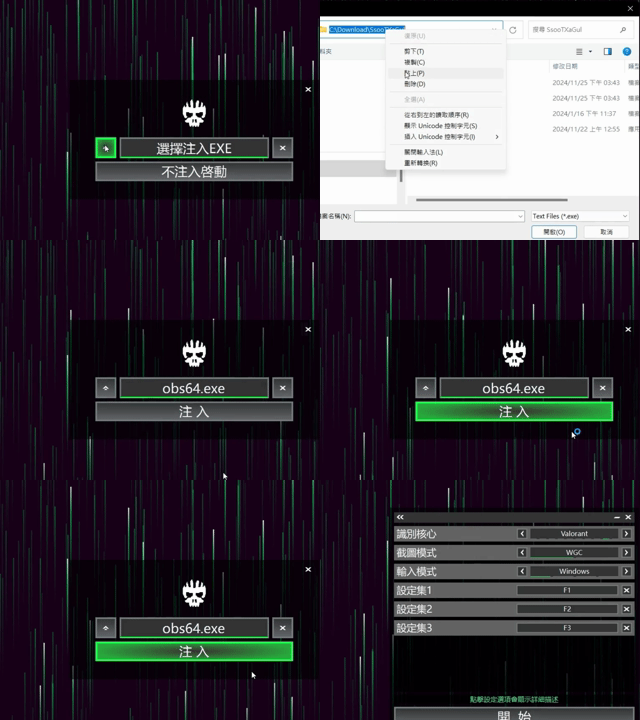
2.Open AIG Assist injector
3.Click the arrow button on the left
4.In the dialog, select obs64.exe
5.Click Inject to start AIG Assist
- Get the OBS launcher path
- Inject OBS launcher
Generate the core
#1.Enter your card code to log in
2.Select the detection engine for your game
3.Screenshot mode is usually WGC
4.Click Generate
✅ Core generation takes about 3~10 minutes
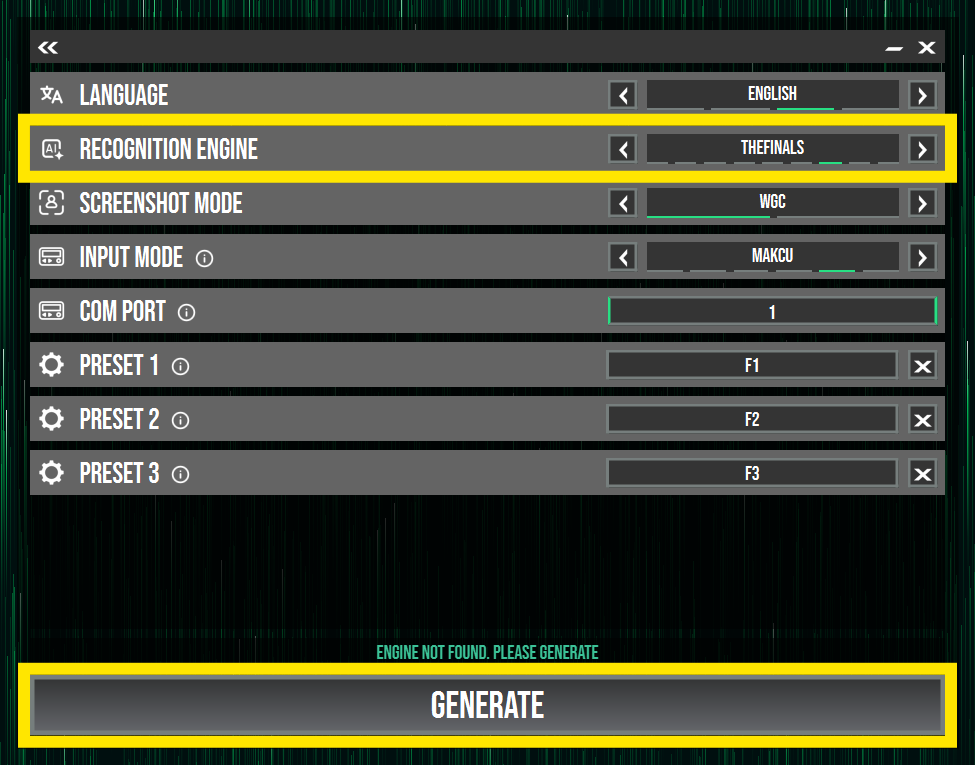
Each core only needs to be generated the first time. You will not need to wait on subsequent launches.