Export and Import
#Export
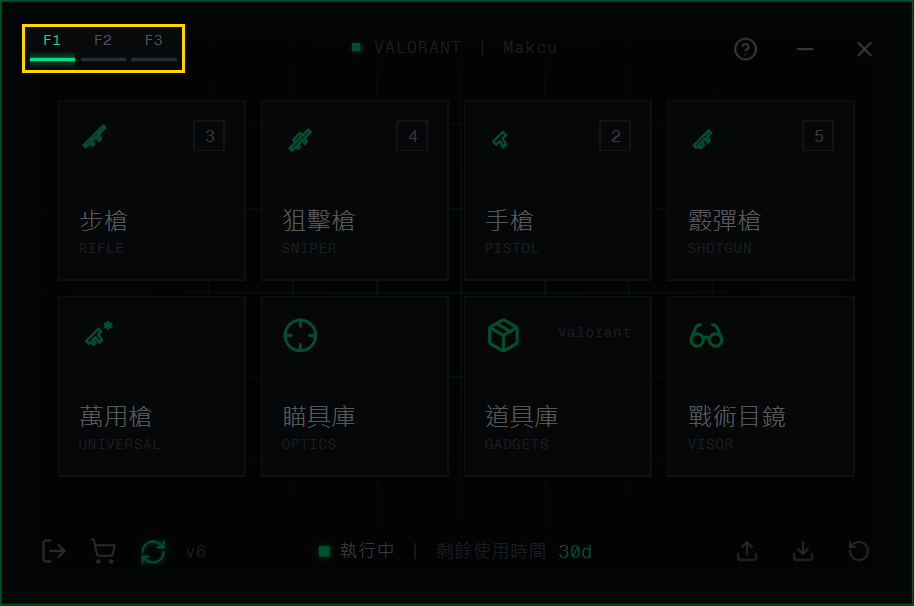
1.Select the Profile Set to share (F1 / F2 / F3)
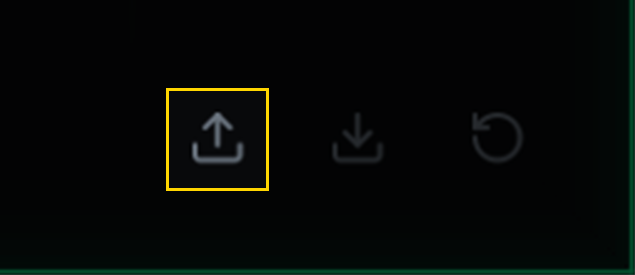
2.Click Export on the right of the bottom bar
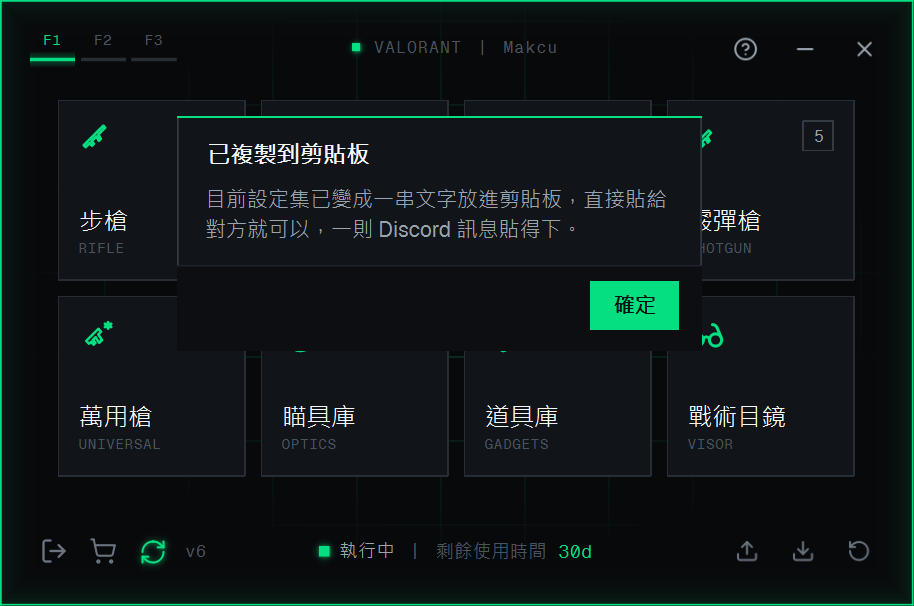
3."Copied to Clipboard" appears; paste it straight to the other person
#Import
1.Copy the text the other person gave you
2.Select the Profile Set to put it in and click Import on the right of the bottom bar
3."Import Settings" appears; click Confirm

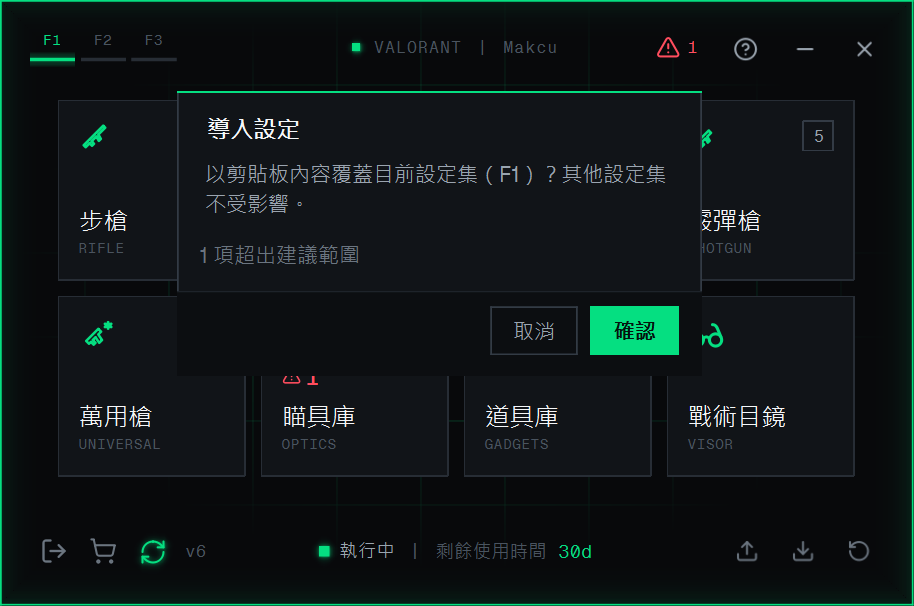
"N field(s) exceed recommended range" means some values deviate from the server's Best Parameters.
-
Importing overwrites the currently selected Profile Set; the other two are not affected.
-
System Settings are local settings and are not exported.
-
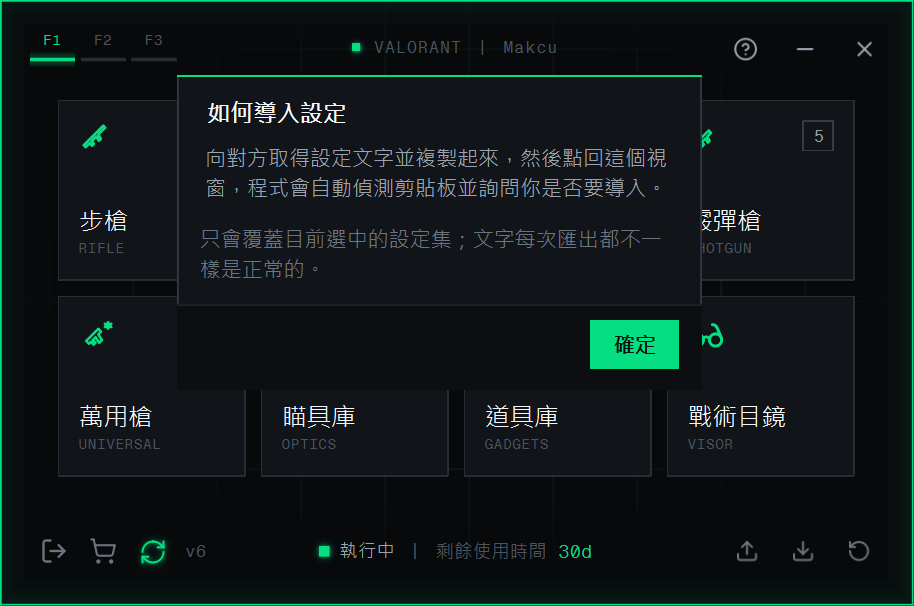
If what you pasted is not text exported by AIG5, "How to Import Settings" appears (see the image below); if the text is corrupted or fails verification, "Import Failed" appears.
-
AIG5 clears the clipboard after the import window closes.