Getting Started
GPU Requirements
Supported NVIDIA Models
| 50 Series | 40 Series | 30 Series | 20 Series | |
|---|---|---|---|---|
| Minimum | RTX5050 |
RTX4050 |
RTX3050it |
RTX2060 |
AMD is not supported yet
How to check your GPU model?
1.Press Win + R
2.Type dxdiag and click "OK"
3.Switch to the "Display" tab (dual GPU systems show "Display 1" and "Display 2")
4.Under "Device", check the model name shown in "Name"
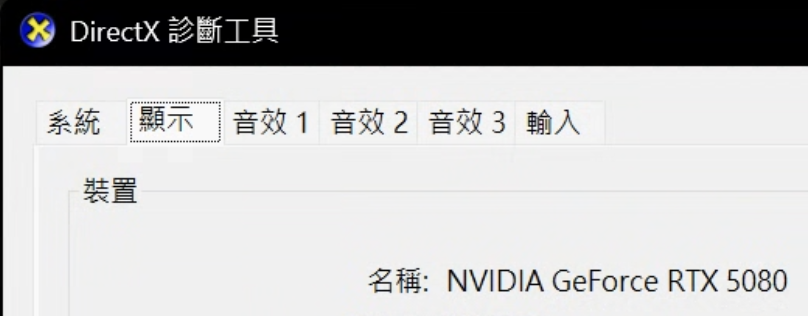
Follow the guide below
- Install AIG Assist
- Optimize the AIG Assist experience
- Connect the box
- Set base sensitivity
- Enjoy
Download the installer
 Download now
Install
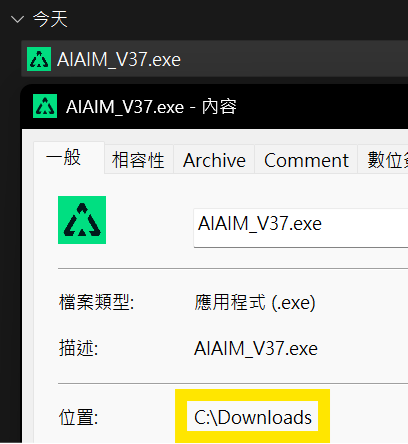
The installer path must not contain Chinese characters
1.Right click the installer and choose Properties 2.Check whether the path shown under Location contains any Chinese characters
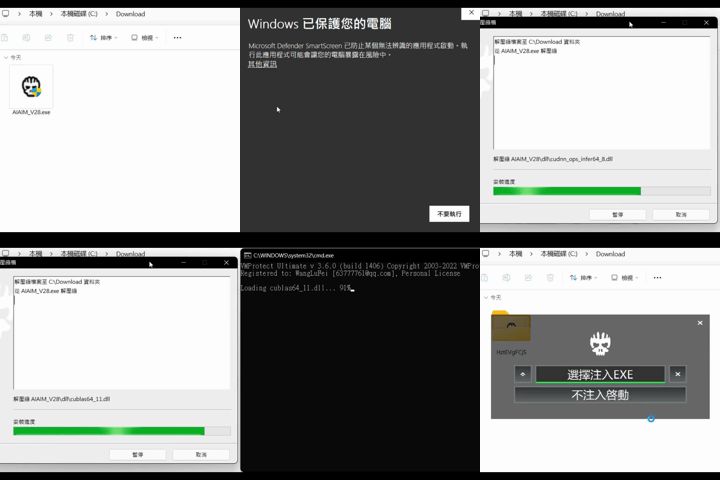
1.Double click the downloaded installer
If Windows protection shows up
2.Click More info
3.Click Run anyway
✅ The AIG Assist will start automatically, and you will see the injector window
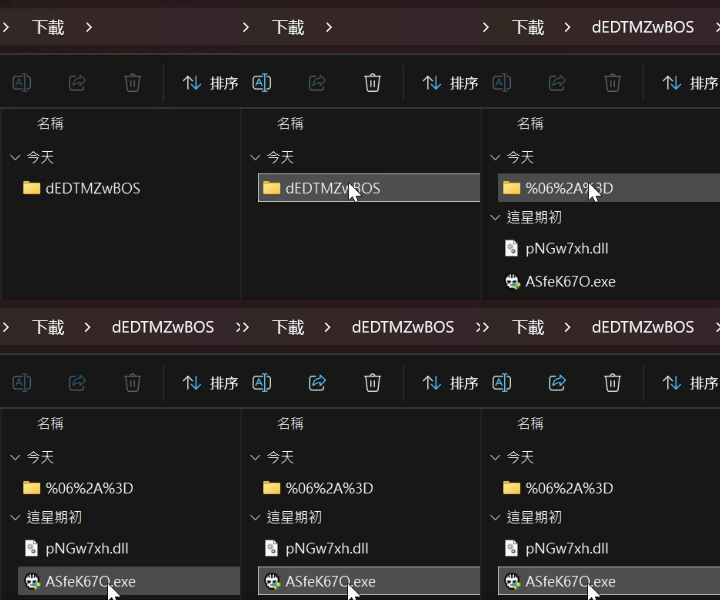
After installation, the installer will be replaced by a randomly named folder. You can find the injector inside.
Injection
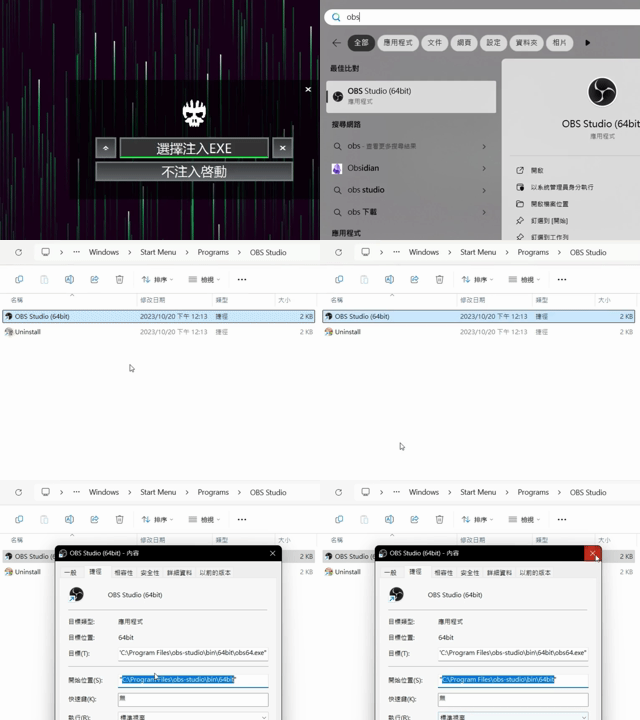
We recommend installing OBS as the injection target. It helps improve stealth and usage safety.
1.Get the OBS launcher path
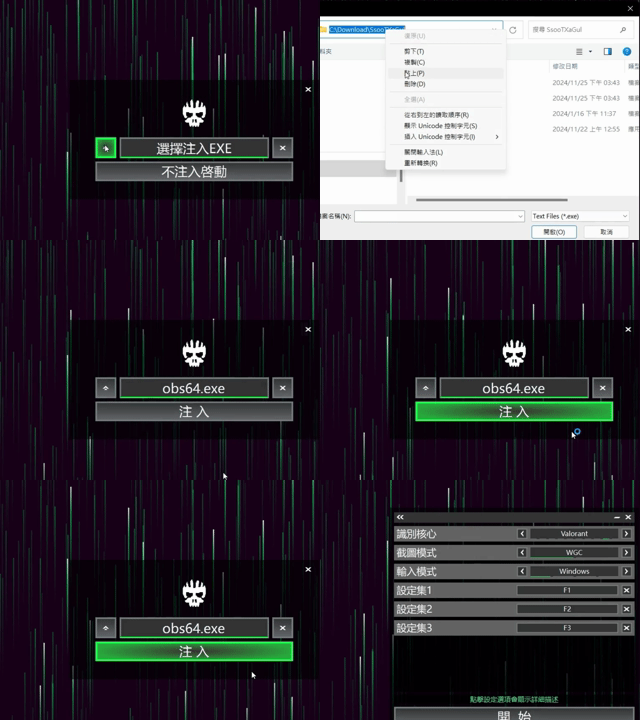
2.Open AIG Assist injector
3.Click the arrow button on the left
4.In the dialog, select obs64.exe
5.Click Inject to start AIG Assist
Generate the core
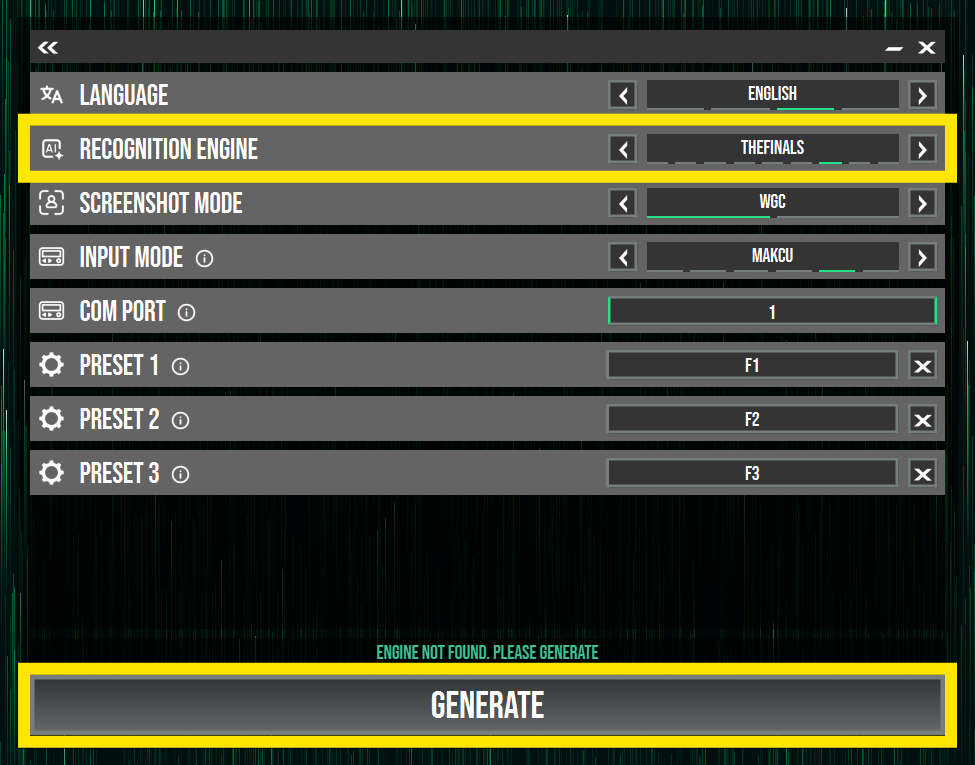
1.Enter your card code to log in
2.Select the detection engine for your game
3.Screenshot mode is usually WGC
4.Click Generate
✅ Core generation takes about 3~10 minutes
Each core only needs to be generated the first time. You will not need to wait on subsequent launches.
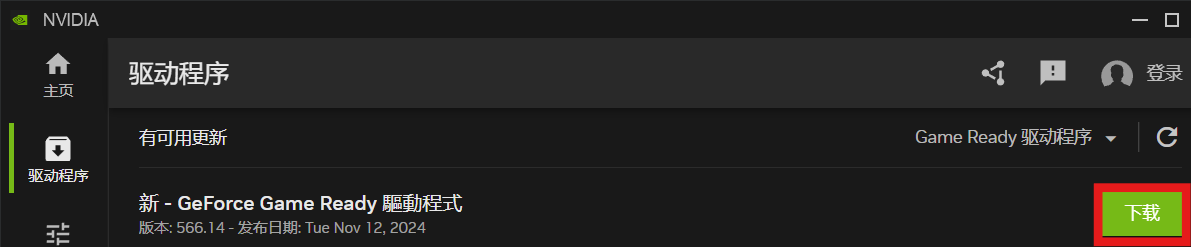
You are all set
- Install AIG Assist
- Optimize the AIG Assist experience
- Connect the box
- Set base sensitivity
- Enjoy