Makcu
Buy the box
 Buy
BuyInstallation
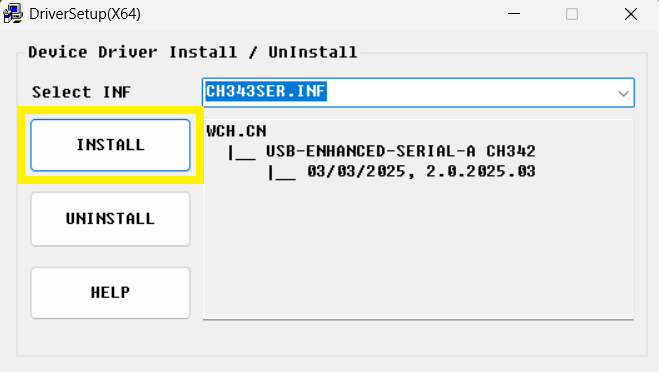
1.Driver installation
2.Firmware flashing
⬅️Left and ➡️Right firmware flashing must both be completed
If online flashing fails, try offline flashing
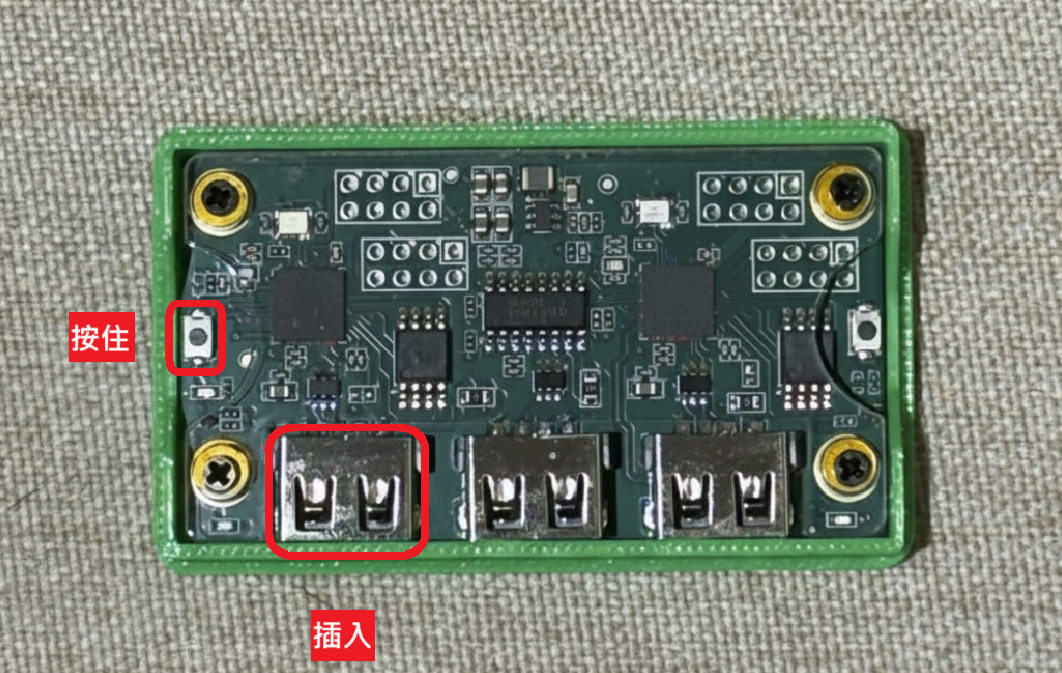
Box connection - Left
1.Plug one end of the dual USB into the PC
2.Open the Makcu top cover
3.Hold the left button
4.Plug the other end into the left port on Makcu while holding the button
5.Release the button after 3 seconds
Firmware write - Left
1.Open the flashing website
2.Click Connect at the top right
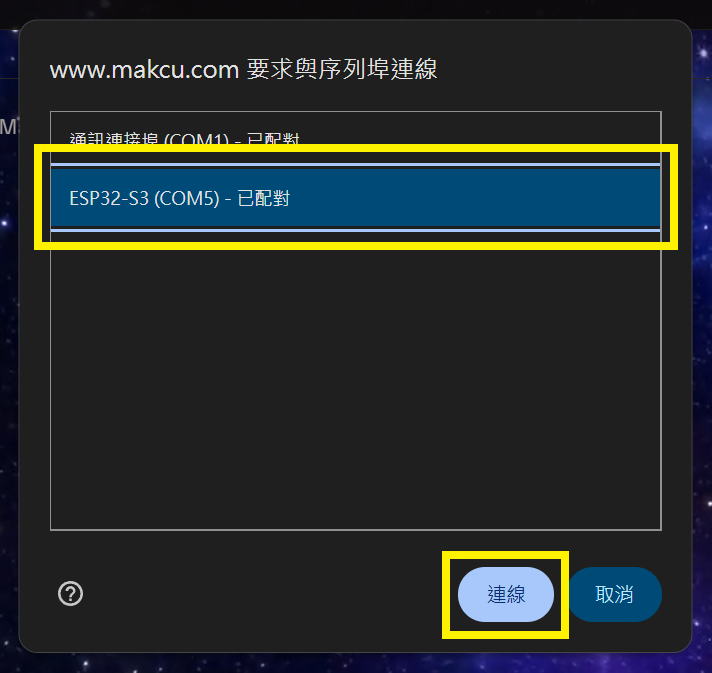
3.Select ESP32-S3
4.Scroll down to Serial Terminal
5.Flash mode -> Online
6.Device list -> select a .bin file (default: V3.7_LEFT_TESTING.bin, for Logitech mouse: V3.2_LEFT.bin)
7.Wait for Flash success
 Flashing website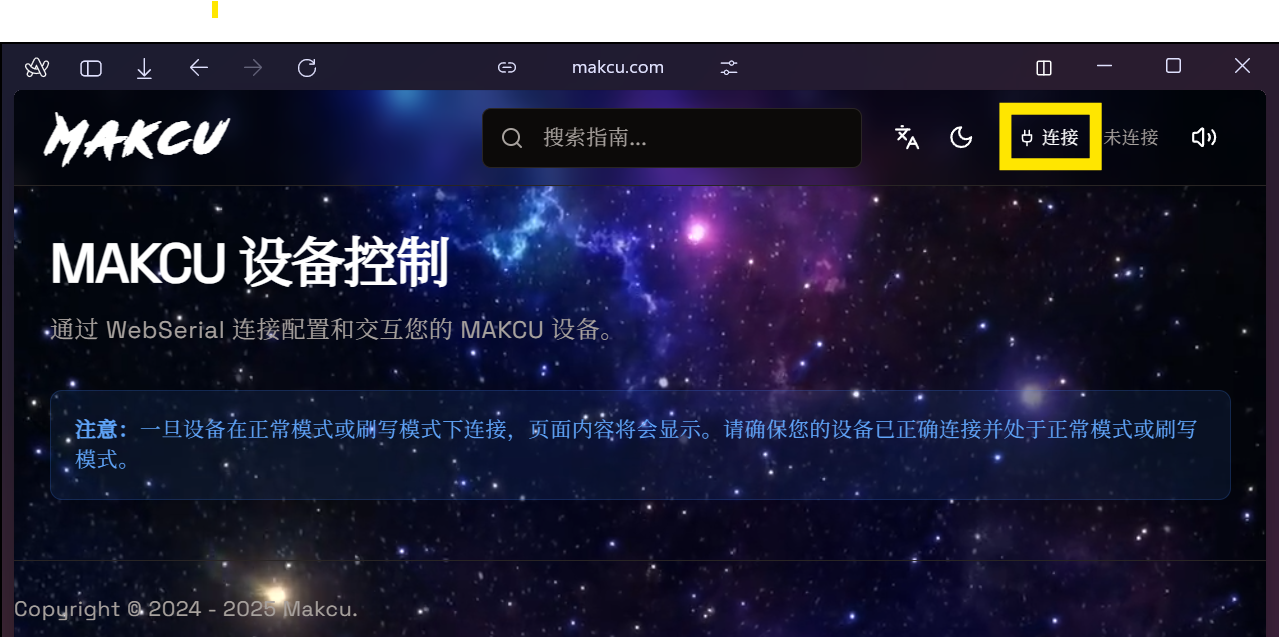

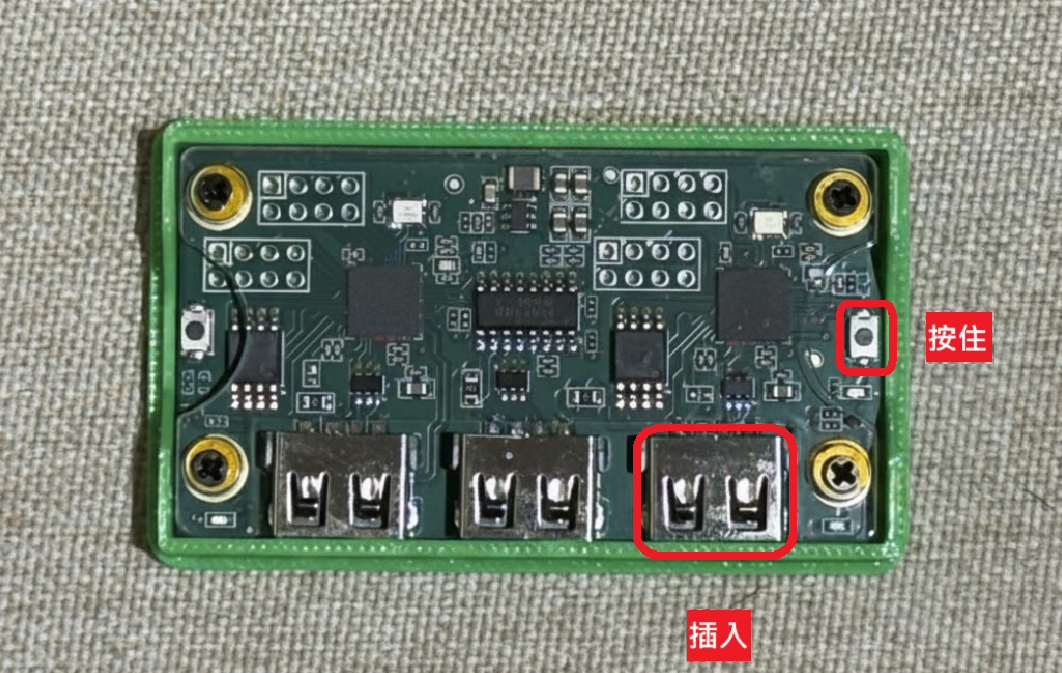
Box connection - Right
1.Unplug the USB from Makcu
2.Open the Makcu top cover
3.Hold the right button
4.Plug the dual USB into the right port while holding the button
5.Release the button after 3 seconds
Firmware write - Right
1.Open the flashing website
2.Click Connect at the top right
3.Select ESP32-S3
4.Scroll down to Serial Terminal
5.Flash mode -> Online
6.Device list -> select a .bin file (default: V3.7_RIGHT_TESTING.bin, or try V3.4_RIGHT.bin)
7.Wait for Flash success
To change the flash version, click Online to switch to Offline and then download one of the firmware files below
⬅️Left firmware (flash any one .bin)
➡️Right firmware (flash any one .bin)
 V3.2_RIGHT.bin
V3.4_RIGHT.bin
v2_new_right_test.bin
3_8_right_test.bin
V3.2_RIGHT.bin
V3.4_RIGHT.bin
v2_new_right_test.bin
3_8_right_test.bin
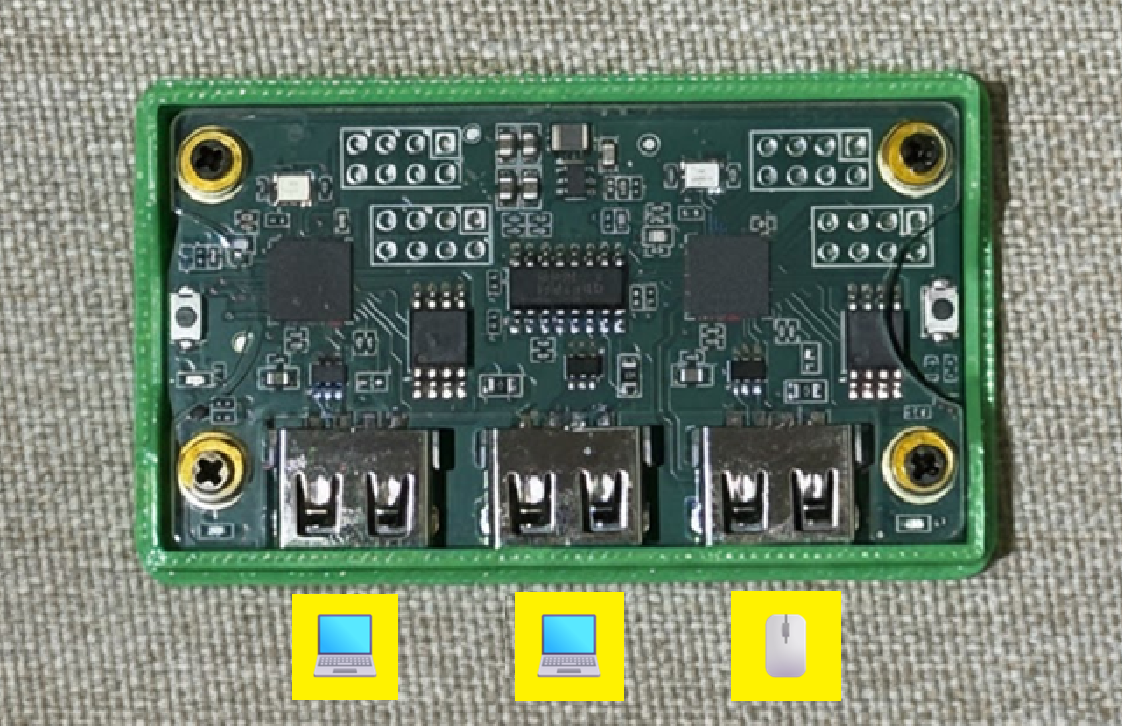
Connect the box to the PC
Use the left/middle ports with the included USB cable to connect to the PC
The right port connects to the mouse or wireless receiver
Connect the box to AIG Assist
Get the COM port
1.Open Device Manager (right click the Windows Start button to find it)
2.Expand Ports (COM & LPT)
3.Find xxx (COM?) and note the COM number

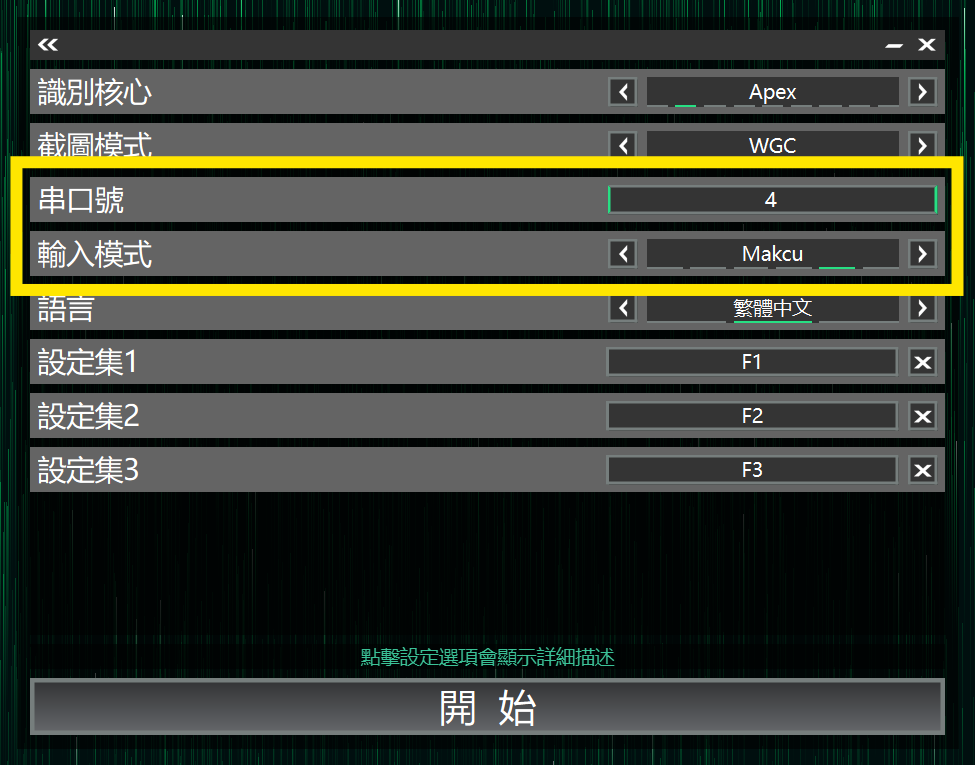
Assist connection settings
1.Open AIG Assist and log in
2.On the Core Selection page set Input Mode to Makcu
3.Enter the COM port number
4.Click Start button in AIG Assist to connect
FAQ
Does Makcu require a secondary PC?
Makcu supports separating the gaming PC and the secondary PC, but it is not required.
You are all set
- Install AIG Assist
- Optimize the AIG Assist experience
- Connect the box
- Set base sensitivity
- Enjoy