KmboxA
Buy the box
 Buy
BuyConnect the box to the PC
[PC] - [KmboxA] - [Mouse or wireless receiver]
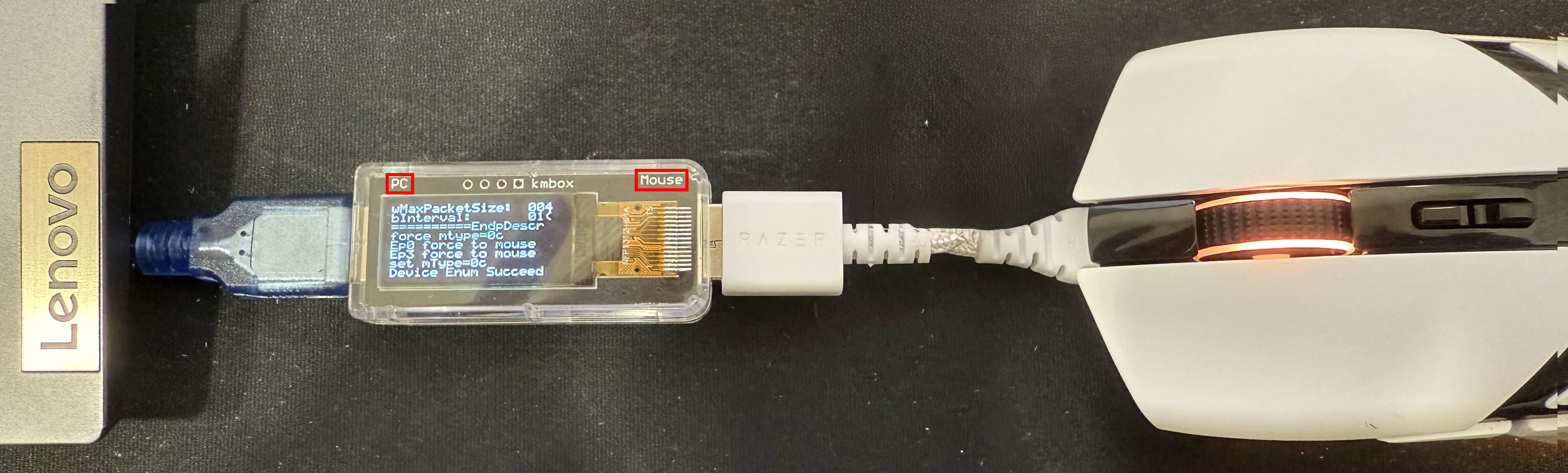
Installation
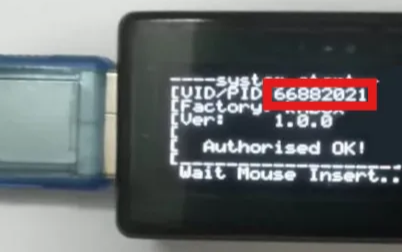
1.If the VID/PID shown on KmboxA is 66882021, it can lead to a ban. Please follow the steps below to change it.
2.Close any game or anti cheat system before downloading the tool to avoid detection risk.
If the mouse works normally after connecting, you can skip mouse adaptation
You will need another mouse connected directly to your PC to complete the steps
1.Download the tool
2.Check the VID/PID shown on KmboxA
3.Launch the tool and enter it in the VID/PID: field at the top left
4.Click Connect box
5.If your VID/PID is 66882021, change it to any other 8 digit number (example: 12345678)
6.Click Modify VID/PID
7.Click Auto adapt at the bottom right
✅ Your mouse should work normally now
 Download tool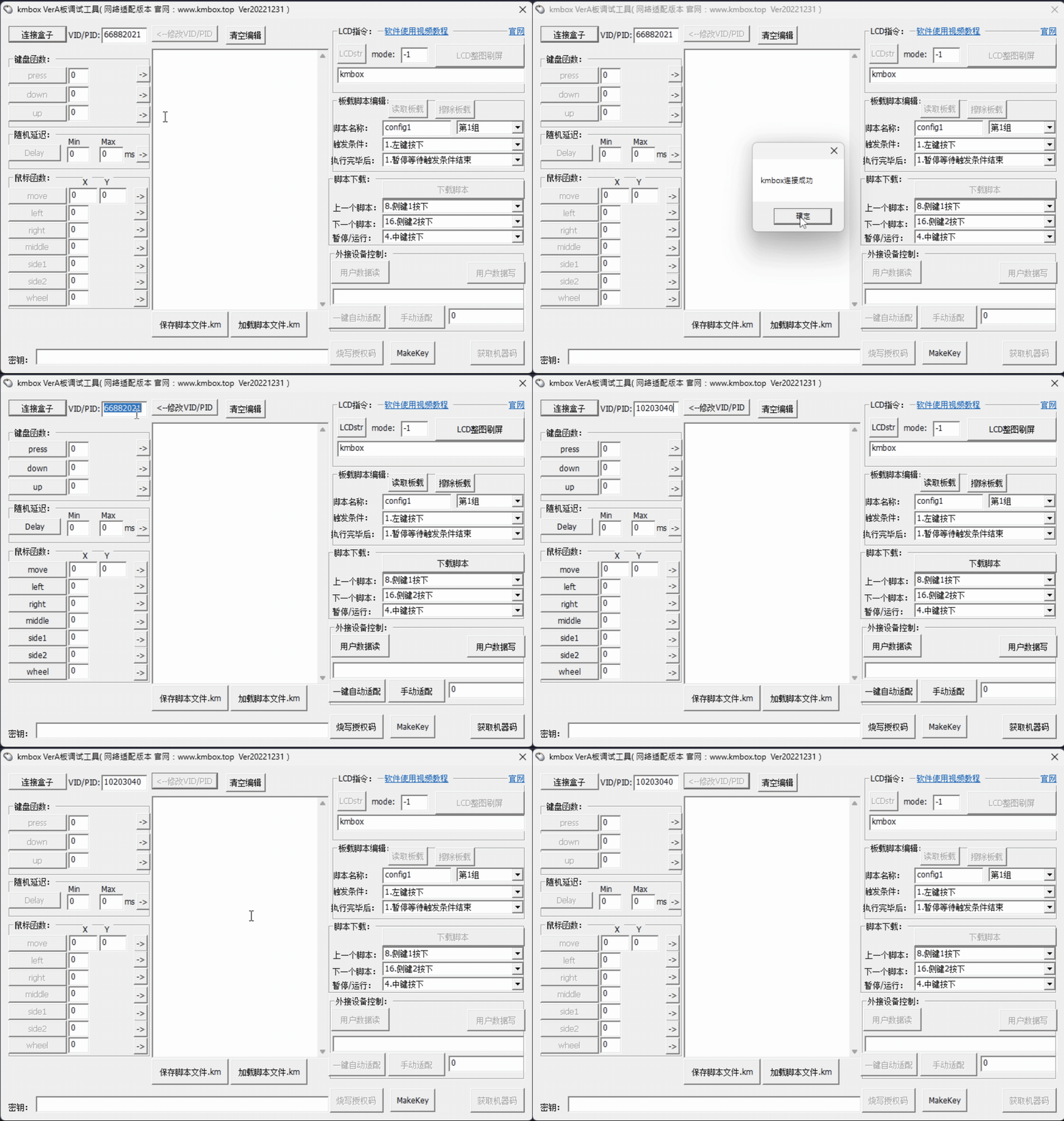
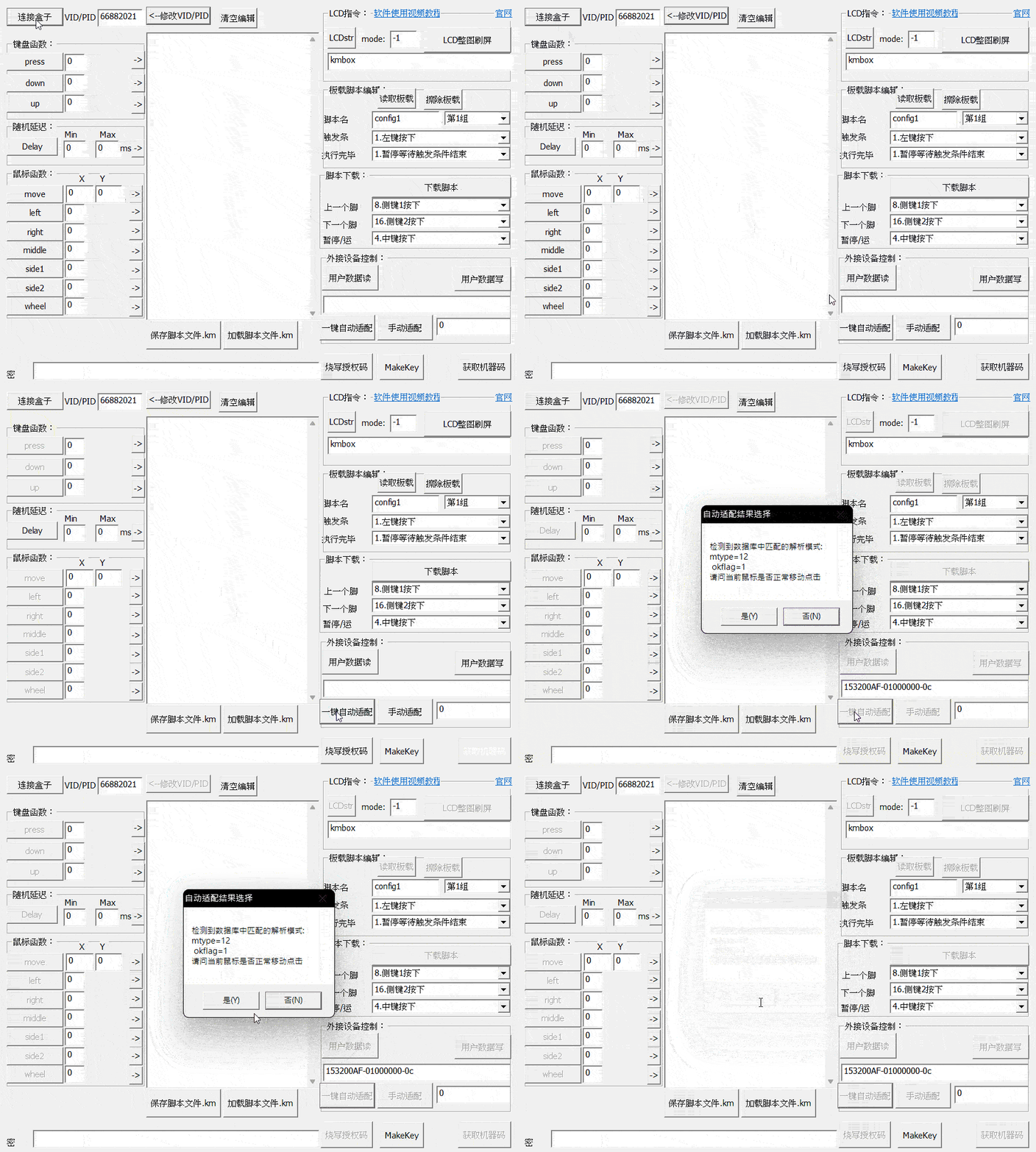
If the mouse still does not move after Auto adapt
In Manual adapt, try values from 0 to 24 one by one to find the one that works.
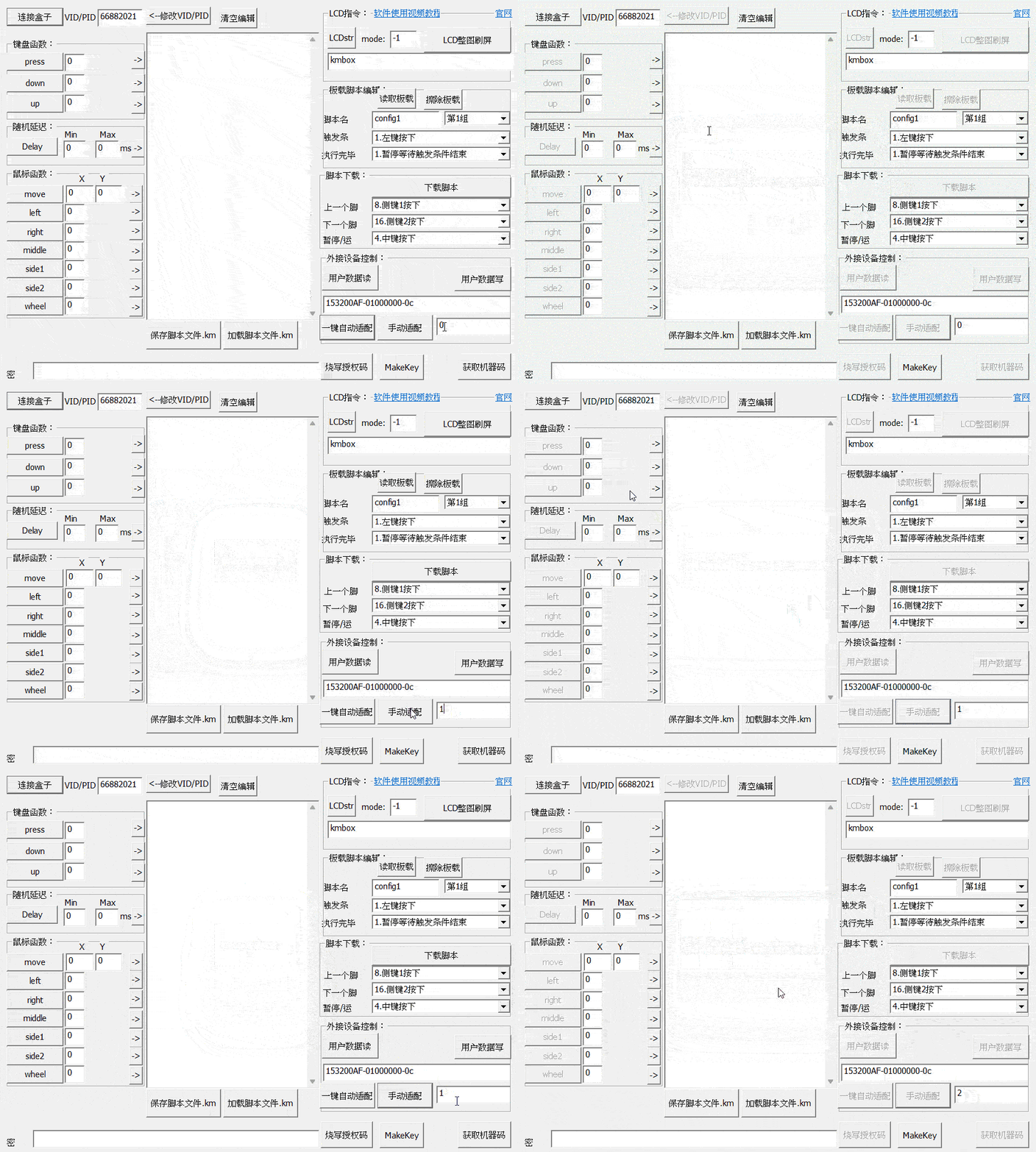
Connect the box to AIG Assist
1.Get the VID/PID shown on KmboxA
2.Open AIG Assist and log in
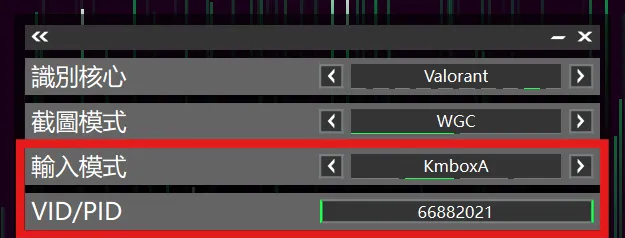
3.On the Core Selection page set Input Mode to KmboxA
4.Enter the VID/PID
5.Click Start button in AIG Assist to connect
You are all set
- Install AIG Assist
- Optimize the AIG Assist experience
- Connect the box
- Set base sensitivity
- Enjoy